Welcome back! Here are some more tips for Microsoft Flight Simulator 2020. Enjoy!
Speed Up Your Flight
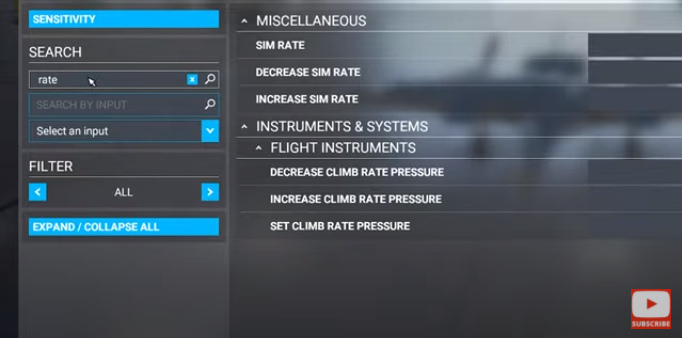
If you want to speed up your flight, you need to first set up a few custom keyboard keys. Under ‘keyboard shortcuts’ search for ‘rate’. From here you can assign any keyboard key to your rate of speed, and speed up or slow down your sim at will.
Training Flights
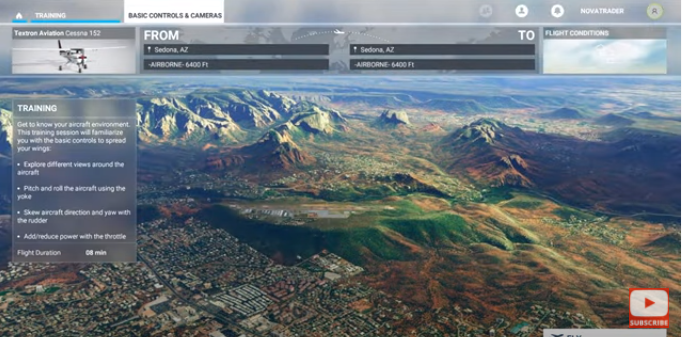
If you’re new to flight simulation this is something you should definitely do. Go to ‘training’ and set up some training flights. This is a great way to learn a little about flight simulation when you’re just getting started.
Flying a large 747 is always exciting. Still, it takes a lot of practice. Knowledge of these airliners systems are key to flying them properly. Starting with a cessna 172, or a plane similar in size, will give you the experience you need to start flying larger and more complex airliners.
Microsoft Flight Sim On Xbox
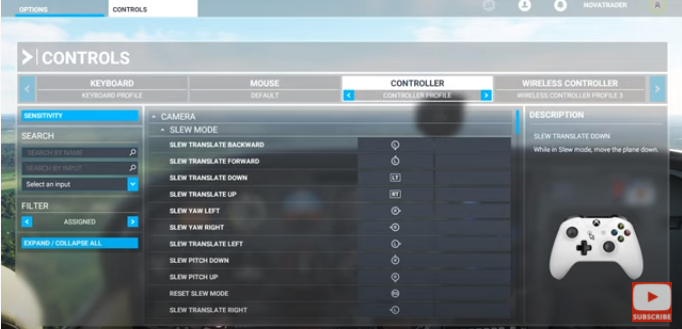
In anticipation of Microsoft Flight Simulator coming out on Xbox, there is actually an option to connect your Xbox controller. If you don’t have an Xbox controller, you can also use your playstation controller in the sim.
Cinematic Shots
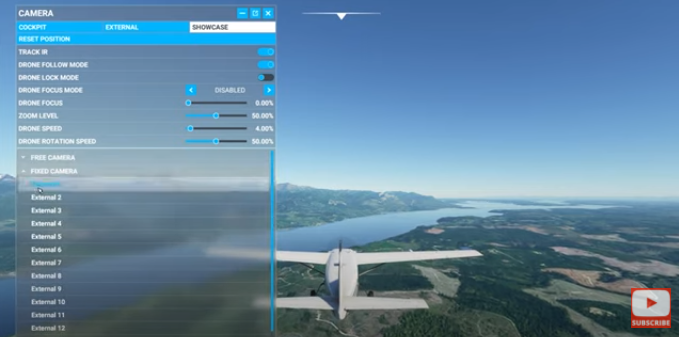
In order to get shots that have a cinematic look and feel, go to ‘showcase’ and open the ‘fixed camera’ view list. Some planes will have more/less views than others. But you should always be able to find beautiful and breathtaking views that are built in with each plane.
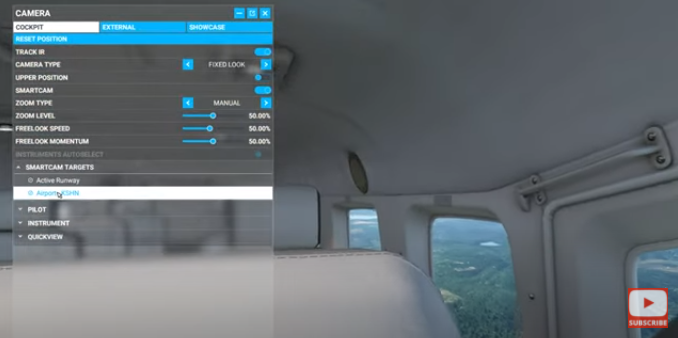
Smart Cam
To stay focused on an airport as you fly by, use the smart cam option. You can use this in cockpit or external view mode.
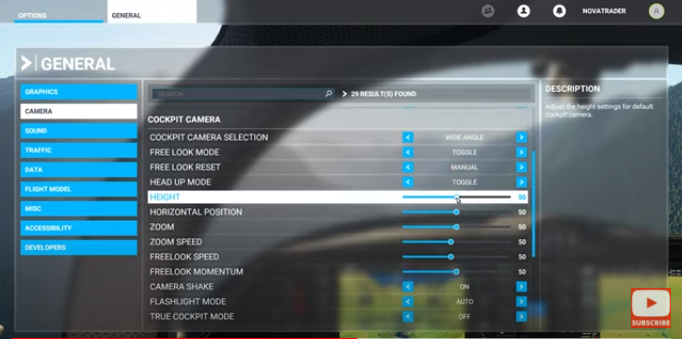
Pilot Position
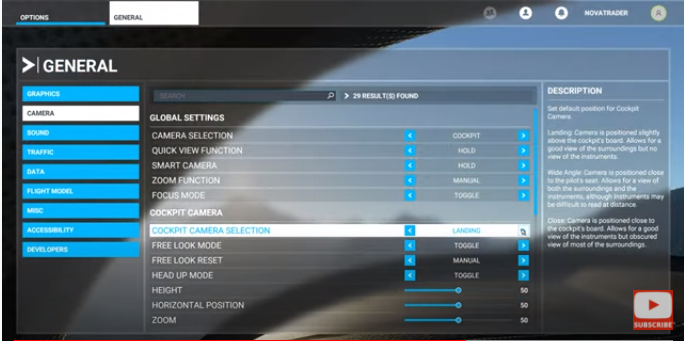
You can easily adjust the pilot position by going to ‘settings’, ‘options’, ‘general’ and then ‘camera’. From there, scroll down to the horizontal position and height. As you make the adjustments you will see the results live in the background.
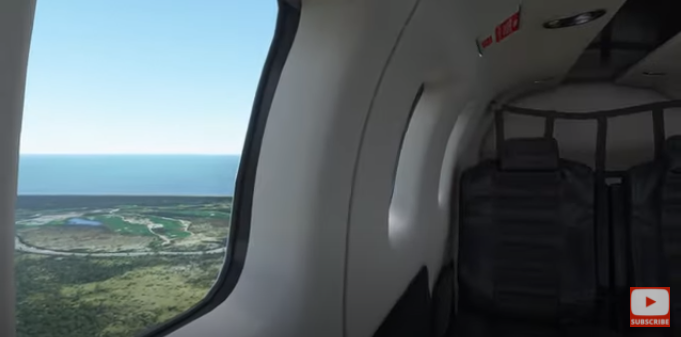
Reset To Default Location View
Just hold ‘ctrl’ and push the ‘spacebar’ if you want to reset your view to the default location.
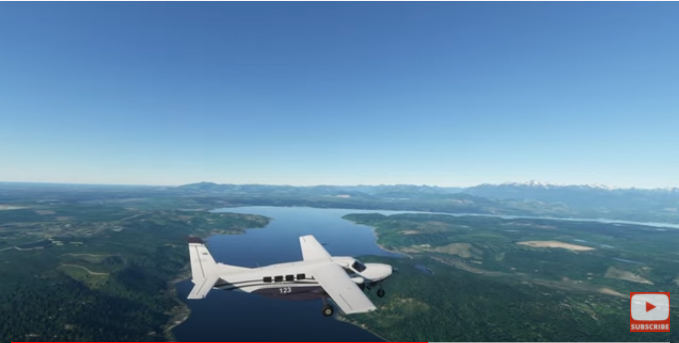
Switch Between Cockpit/External View
A handy way to switch between cockpit and external view is by simply hitting the end key.
Change Cockpit View
To change the view inside the cockpit go to ‘general’ and then ‘camera’. Here you’ll find ‘cockpit camera selection’. You can change this from landing, close and wide view.
Controller Flying Sensitivity
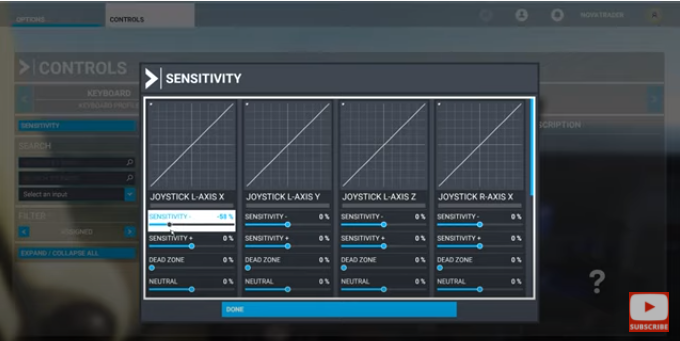
If you’re using a controller for flying, try turning down the sensitivity. This will prevent you from having quick jerky actions when flying your plane.
Microsoft Flight Sim On An SSD
If you’re experiencing slow load times in your sim, try downloading Microsoft Flight Simulator on an SSD. These are significantly faster when it comes to loading times.
Thanks again for reading. Enjoy the tips!
Leave a Reply